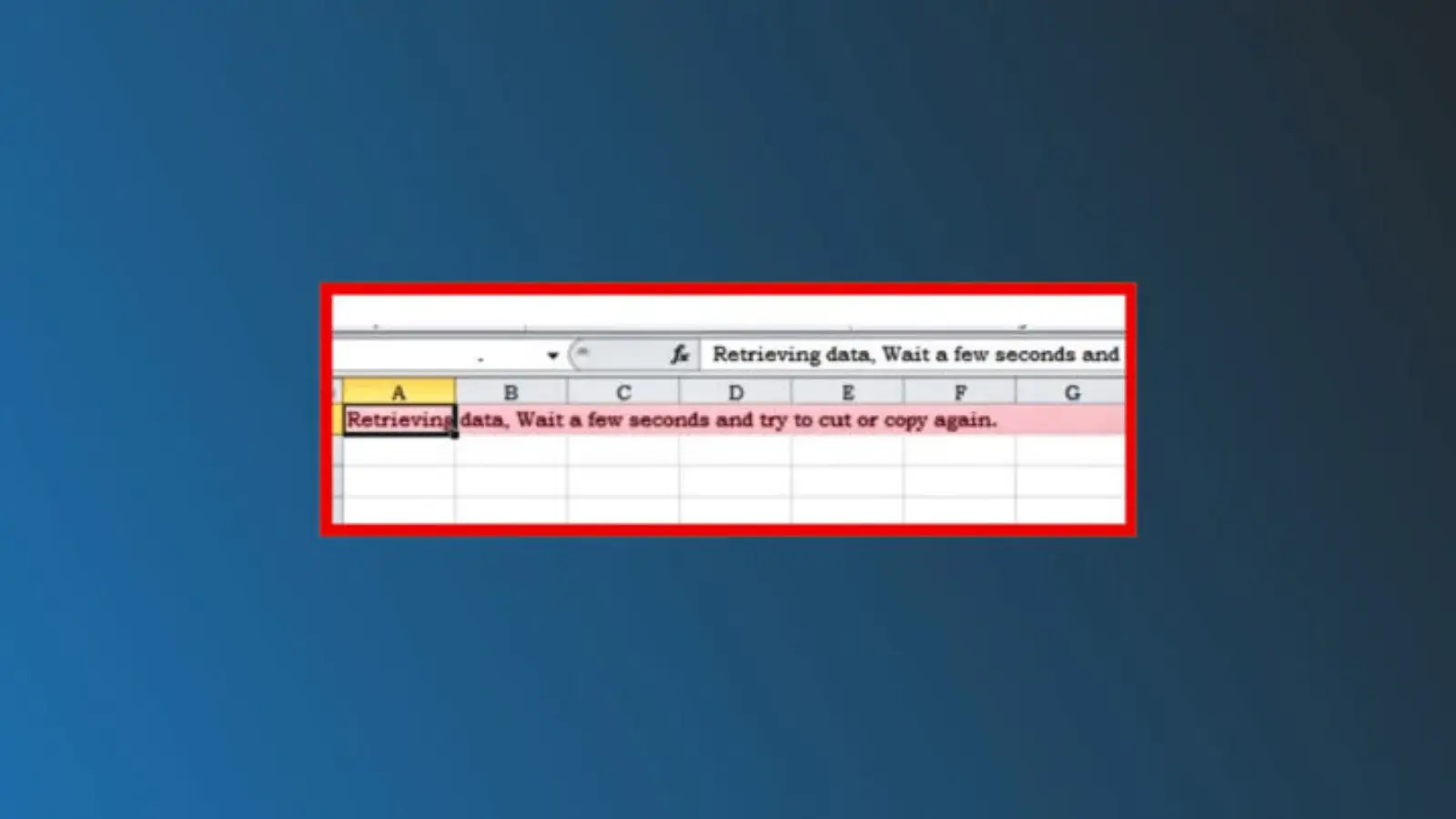
The error message “retrieving data. wait a few seconds and try to cut or copy again.” commonly appears in Microsoft Excel, Excel Online, Google Sheets imports, and cloud-based spreadsheet tools when users attempt to copy or cut data before synchronization is complete.
In most cases, the issue happens because the platform is still loading, syncing, or processing spreadsheet information from the cloud.
Many users search for this problem because it interrupts workflow, especially during office work, school projects, reporting, or data migration tasks.
Fortunately, the issue is usually temporary and can be solved with a few simple fixes. This guide explains the causes, solutions, comparisons, troubleshooting methods, and prevention tips in detail.
What Does “Retrieving Data. Wait a Few Seconds and Try to Cut or Copy Again.” Mean?
The message “retrieving data. wait a few seconds and try to cut or copy again.” indicates that your spreadsheet application is still communicating with the server or loading remote data.
This error often appears when:
- Using Microsoft Excel Online
- Working with OneDrive spreadsheets
- Editing SharePoint files
- Copying large amounts of data
- Using unstable internet connections
- Syncing cloud-based files
The software temporarily blocks copying or cutting actions until synchronization is finished.
Why Does the “Retrieving Data” Error Happen?
Several technical factors can trigger this issue.
1. Slow Internet Connection
Cloud-based spreadsheets rely heavily on internet speed. If your connection is weak, the spreadsheet cannot finish loading data.
Signs of Internet-Related Problems
- Cells load slowly
- Delayed scrolling
- File freezing
- Sync icon spinning continuously
2. Large Spreadsheet Files
Very large Excel or Google Sheets files can overwhelm the browser or application.
Common File Issues
| File Size | Performance Impact |
| Under 5 MB | Usually smooth |
| 5–20 MB | Moderate lag |
| 20 MB+ | Frequent sync delays |
Large files with formulas, charts, or conditional formatting are more likely to trigger the retrieving data. wait a few seconds and try to cut or copy again. message.
3. Browser Cache Problems
Old browser cache files can interfere with cloud spreadsheet synchronization.
Browsers Commonly Affected
- Google Chrome
- Microsoft Edge
- Firefox
- Safari
4. Microsoft Excel Online Sync Delay
Excel Online constantly syncs data with Microsoft servers. If syncing pauses, copying and cutting actions may fail temporarily.
How to Fix “Retrieving Data. Wait a Few Seconds and Try to Cut or Copy Again.”
Below are the most effective solutions.
Refresh the Spreadsheet
The simplest fix is refreshing the page.
Steps
- Save your work
- Press:
- F5 on Windows
- Cmd + R on Mac
- Wait for the spreadsheet to fully reload
This often resolves temporary synchronization problems.
Use Desktop Excel Instead of Excel Online
Many users report that the desktop app performs better than browser-based Excel.
Why Desktop Excel Works Better
| Feature | Excel Online | Desktop Excel |
| Cloud Dependency | High | Low |
| Performance | Moderate | Faster |
| Large File Handling | Limited | Better |
| Offline Access | No | Yes |
If possible, open the spreadsheet in the desktop version.
Wait for Synchronization to Finish
Sometimes the platform simply needs more time.
Look for These Indicators
- Sync icon completed
- “Saved” status appears
- Loading spinner disappears
Trying to copy data too quickly can repeatedly trigger the error.
Copy Smaller Data Sections
Copying massive ranges of cells can overload the application.
Better Approach
Instead of copying:
- Entire worksheets
- Thousands of rows
- Complex formulas
Try copying smaller chunks of data.
Clear Browser Cache
Cache corruption is a common cause of spreadsheet glitches.
How to Clear Cache in Chrome
- Open Chrome
- Click the three-dot menu
- Select Settings
- Go to Privacy and Security
- Choose Clear Browsing Data
- Clear:
- Cached images
- Cookies
- Site data
Restart the browser afterward.
Disable Browser Extensions
Extensions can interfere with cloud apps.
Extensions That May Cause Problems
- Ad blockers
- Privacy tools
- Script blockers
- Productivity extensions
Temporarily disable them and test the spreadsheet again.
Check Internet Stability
A stable internet connection is essential.
Recommended Internet Speeds
| Activity | Minimum Speed |
| Basic spreadsheet editing | 5 Mbps |
| Large Excel syncing | 15 Mbps |
| Team collaboration | 25 Mbps |
Restart Your Device
Sometimes temporary memory or software conflicts cause the issue.
A quick restart can:
- Clear RAM
- Refresh browser processes
- Restore stable syncing
Use Another Browser
If Chrome fails, try:
- Edge
- Firefox
- Safari
Different browsers handle cloud synchronization differently.
How Excel Online Handles Data Retrieval
Excel Online continuously syncs information with Microsoft servers.
Background Processes Include
- Auto-saving
- Formula calculation
- Cloud backup
- Multi-user collaboration
- Permission validation
If any process slows down, the message “retrieving data. wait a few seconds and try to cut or copy again.” may appear.
Common Situations Where the Error Appears
During Team Collaboration
Multiple users editing the same file can cause temporary syncing delays.
While Using OneDrive
OneDrive synchronization problems often affect Excel Online performance.
After Pasting Large Formulas
Complex formulas require additional processing time.
Examples include:
- VLOOKUP
- XLOOKUP
- INDEX MATCH
- Array formulas
- Pivot tables
Retrieving Data Error vs Other Excel Errors
Understanding the difference helps users troubleshoot faster.
| Error Message | Meaning |
| Retrieving data. Wait a few seconds | Sync delay |
| #VALUE! | Formula problem |
| #NAME? | Invalid formula name |
| #REF! | Broken cell reference |
| File Locked | Another user editing |
How Cloud Storage Affects Spreadsheet Performance
Cloud storage platforms can influence Excel behavior.
OneDrive
Most common platform for Excel Online syncing.
SharePoint
Often used by companies and organizations.
Google Drive
Can create compatibility delays when importing Excel files.
Best Practices to Avoid This Error
Keep File Sizes Smaller
Delete:
- Unused sheets
- Extra formatting
- Old formulas
- Duplicate data
Avoid Too Many Formulas
Heavy formulas increase processing time.
Replace Complex Formulas With
- Static values
- Simpler calculations
- Helper columns
Save Files Locally When Possible
Offline editing reduces sync-related problems.
How Long Should You Wait?
In many cases, waiting 5–30 seconds solves the issue automatically.
However, if the message continues appearing for several minutes, additional troubleshooting is necessary.
Mobile Devices and the Retrieving Data Error
The issue also appears on phones and tablets.
Common Causes on Mobile
- Weak Wi-Fi
- Low RAM
- Background apps
- Outdated Excel app
How to Fix It on Mobile
Android and iPhone Solutions
- Force close the app
- Reopen the spreadsheet
- Update the Excel app
- Restart the device
- Switch Wi-Fi networks
Excel Online vs Desktop Excel Performance Comparison
| Feature | Excel Online | Desktop Excel |
| Speed | Moderate | Fast |
| Offline Support | No | Yes |
| Large File Handling | Limited | Excellent |
| Advanced Features | Basic | Full |
| Stability | Internet-dependent | More stable |
Advanced Fixes for IT Users
Some advanced users may need deeper troubleshooting.
Repair Microsoft Office
Steps
- Open Control Panel
- Select Programs
- Choose Microsoft Office
- Click Repair
Disable Hardware Acceleration
Sometimes graphics rendering conflicts with Excel.
How to Disable
- Open Excel
- Go to Options
- Advanced
- Disable hardware graphics acceleration
How Businesses Handle Spreadsheet Sync Issues
Large organizations often use:
- Faster enterprise internet
- Local backups
- Desktop Excel deployment
- SharePoint optimization
These reduce occurrences of the retrieving data. wait a few seconds and try to cut or copy again. error.
Security and Data Synchronization
Sometimes security software delays cloud communication.
Security Tools That May Interfere
- Antivirus scanning
- Firewall restrictions
- VPN services
Temporarily testing without these tools may help identify the cause.
Interesting Facts About Excel Cloud Sync
Auto-Save Changed Spreadsheet Usage
Cloud collaboration dramatically increased after remote work trends grew worldwide.
Excel Online Handles Millions of Requests Daily
Microsoft servers process huge amounts of spreadsheet data every day.
Large Teams Increase Sync Complexity
More simultaneous editors increase synchronization delays.
When Should You Contact Microsoft Support?
You may need professional support if:
- The error appears constantly
- Files become corrupted
- Sync never finishes
- Multiple devices show the same issue
Troubleshooting Checklist
Use this quick checklist when the problem appears.
| Fix | Try It |
| Refresh page | ✔ |
| Wait 30 seconds | ✔ |
| Restart browser | ✔ |
| Clear cache | ✔ |
| Use desktop Excel | ✔ |
| Reduce file size | ✔ |
| Check internet | ✔ |
| Disable extensions | ✔ |
Frequently Asked Questions
What does “retrieving data. wait a few seconds and try to cut or copy again.” mean?
It means the spreadsheet application is still loading or syncing data from the cloud server.
Why can’t I copy data in Excel Online?
Excel Online may still be processing formulas, syncing files, or loading remote data.
How do I fix the retrieving data error quickly?
Refreshing the page, waiting for sync completion, or opening the file in desktop Excel usually solves the issue.
Does internet speed affect this problem?
Yes. Slow or unstable internet connections are one of the main causes.
Can large spreadsheets trigger this error?
Absolutely. Large files with formulas, formatting, and multiple sheets increase processing time.
Is this issue common in Microsoft Excel?
Yes, especially in Excel Online and cloud-based collaboration environments.
Does clearing browser cache help?
Yes. Corrupted cache files can interfere with synchronization.
Final Thoughts
The “retrieving data. wait a few seconds and try to cut or copy again.” error is a common synchronization issue in cloud-based spreadsheet applications like Excel Online and OneDrive.
While frustrating, the problem is usually temporary and easy to fix with simple troubleshooting steps such as refreshing the page, improving internet stability, clearing cache, or switching to desktop Excel.
Understanding why the issue happens helps users prevent future interruptions and maintain smoother workflow performance.
Whether you are a student, office worker, business analyst, or remote team member, following the solutions in this guide can significantly reduce syncing problems and improve spreadsheet reliability.
